Find and Replace
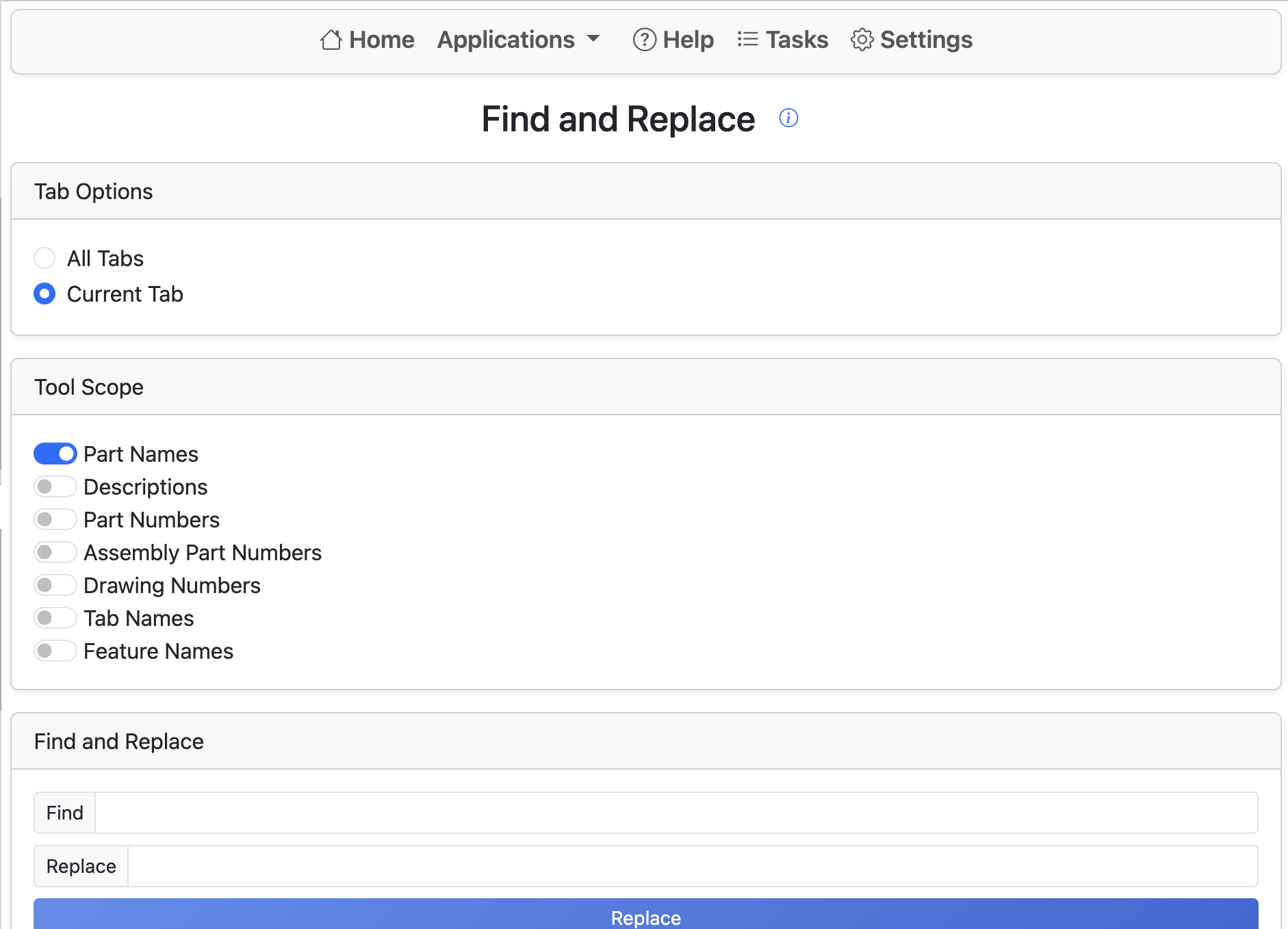
Find and Replace allows easy renaming of various elements in an Onshape document. Start by selecting a scope: current tab or all tabs. When all tabs is selected, only Part Studio contents will be modified, but all tab names will be updated.
Next, select which contexts to update. Find and Replace currently supports:
- Part Names
- Descriptions
- Part Numbers
- Feature Names
- Tab Names
Features with dynamic names (such as variables) are not supported.
Next, enter your search term under Find and the replacement term under Replace. The search term is case-sensitive. All occurrences of the term will be replaced. A preview is visible under the Replace button.
Clicking Replace begins the process. The user may close Renaissance while this runs. The process may take a few minutes depending on the number of parts, features, tabs, and other items.